Server Requirements
As you konw this system is in Wordpress CMS. The Wordpress CMS has a few system requirements.
You will need to make sure your server meets the following requirements:
- PHP 7.4 or greater
- MySQL 5.6 or greater OR MariaDB 10.1 or greater
- Nginx or Apache with mod_rewrite module
- HTTPS support
Plan Setup
Plan settings steps :
- Login to website's admin panel
- Go to Settings > admin settings, and fill your websites settings (like title, subtitle logo)
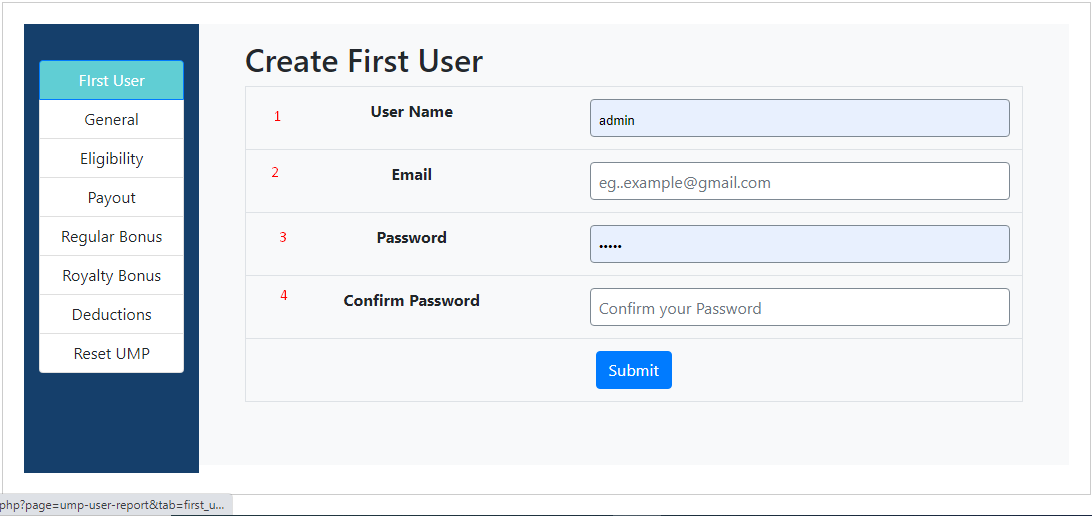
- Go to UMP Settings > Create first user, and create your first user.
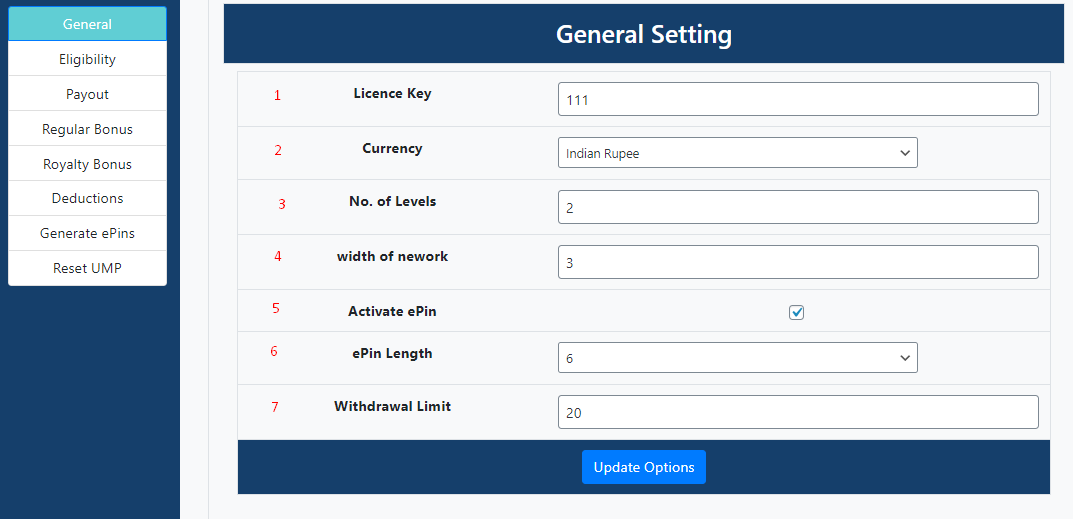
- Go to UMP Settings > General settings, and update your general settings.
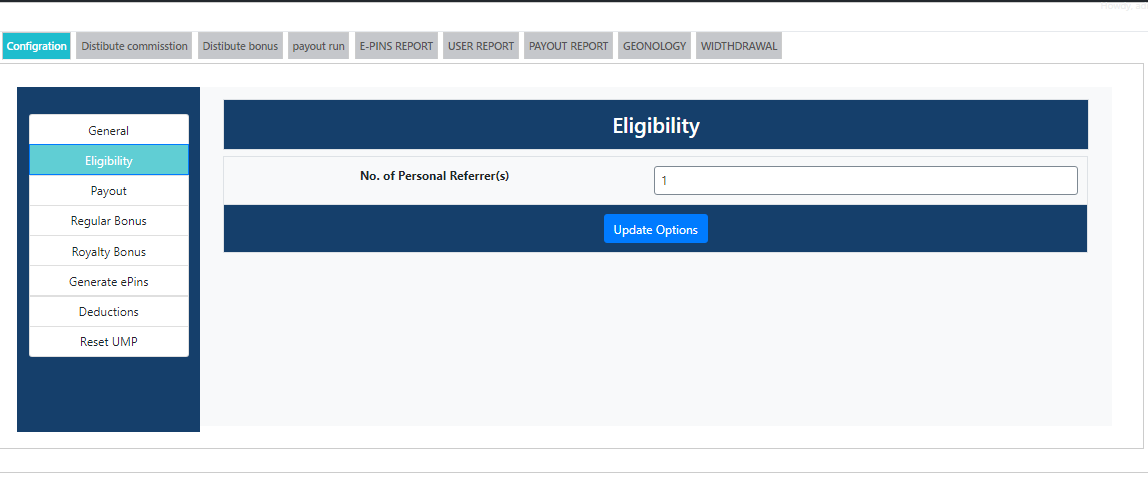
- Go to UMP Settings > Elegibility settings, and update your Elegibility.
- Go to UMP Settings > Payout settings, and update your commissions.
- Go to UMP Settings > Regular bonus, and update your regular bonus Slabs.
- Go to UMP Settings > Royalty bonus, and update your royalty bonus Slabs.
- Go to UMP Settings > Deductions, and update your deductions.
- Go to UMP Settings > Reset UMP, and reset your unilevel mlm plan.
That's Done!!
Plan Setup
Plan settings steps :
- Username --> Enter your username.
- Email --> Senter your valid email.
- Password --> Enter the password.
- Confirm password --> Enter the password that is same as filled in password.
Fill all given fields.
That's Done!!
General Settings
General settings steps :
- Licence key --> Enter your licence key.
- Currency --> Select your currency from given currency.
- NO. of level --> Enter the no. of level how much level do u want in your plan.
- Width of network --> Enter the width of network how much direct refferal user can add under him in geneology .
- Activate e-pin --> Fill cheackbox for active e-pin , if you do not activate this you can not generate e-pins.
- e-pin length --> Select the length of e-pin how much digit e-pin you want you can select.
- Withdrawal limit --> Enter the withdrawal limit , how much money your can withdrawal, and update settings.
Fill all given fields
That's Done!!
Eligibility Settings
Eligibility settings steps :
- No. of personal referral --> Enter the no. of personal referral for eligibility of user commission , suppose you enter 1 now if user add one direct referral then he is eligibale for commission, otherwise user will not get any type of commission.
- update settings.
That's Done!!
Payout Settings
Payout settings steps :
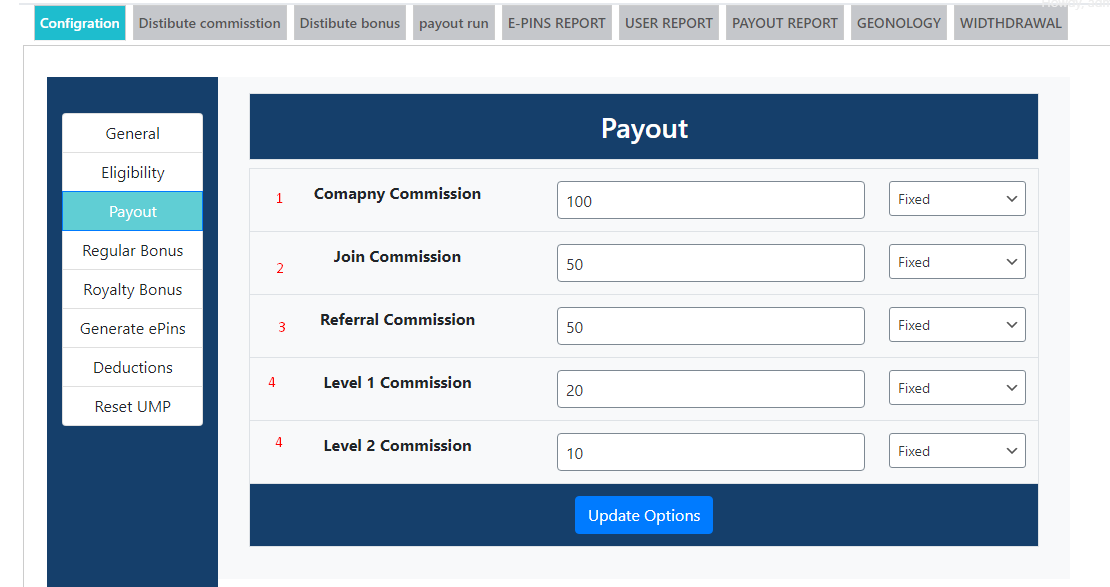
- Company commission --> Enter the amount of company commission of every sale in % or fix amount.
- Join commission --> Enter join commission amount in % or fix amount, this amount user will get at the the time of joining only once.
- Referral commission --> Enter referral commission amount in % or fix amount, if user add two new user user1 or user2 the user will get the referral commission from user1 or user2.
- Level commission --> You can see below in image there are two level commission this setting is given in general settings, you can add how much level do you want , enter the amount in every level in % or fix amount .
- Update settings.
Fill all given fields
That's Done!!
Regular Bonus Settings
Regular bonus settings steps :
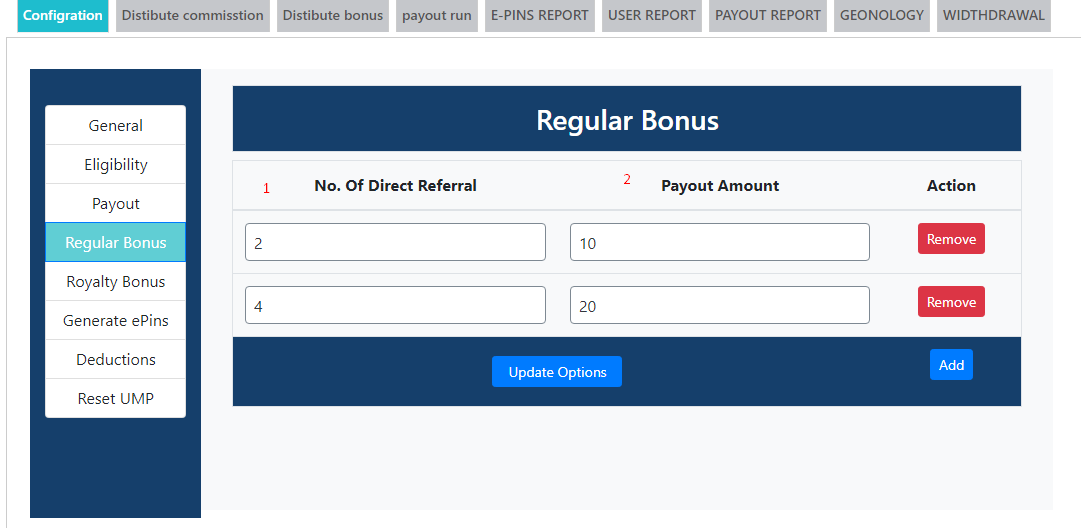
- No. of direct referral --> Enter the no. of direct referral.
- Payout amount --> Enter payout amount.
- Example --> Suppose you enter 2 direct referral if user add two dowenlines then he is eligibile for the amount, in the next textbox you give 4 direct referral if user add 4 dowenline then he is eligible for the amount, you can make condition how much do u want,you can add condition as well as you can delete it .
- Update settings.
Fill all given fields
That's Done!!
Royalty Bonus Settings
Royalty bonus settings steps :
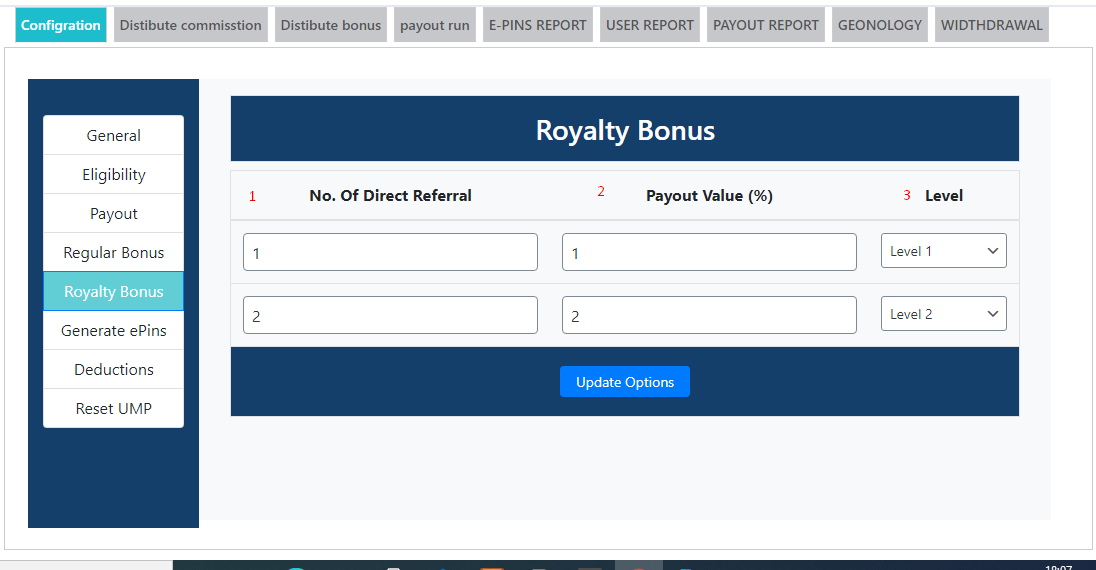
- No. of direct referral --> Enter the no. of direct referral.
- Payout amount in(%) --> Enter payout amount in %.
- Level --> which level this condition will execute.
- Example --> Suppose you enter 2 direct referral if you add two dowenlines and you are at the level that is given in level box then you are eligibile for the amount that is given you will get this amount, in the next textbox you give 4 direct referral if you add 4 dowenline and you are at the level that is given then you are eligible for the amount that is given, these condition are less or more according to no. of level that is given in genreal settings .
- Update settings.
fill all given fields
That's Done!!
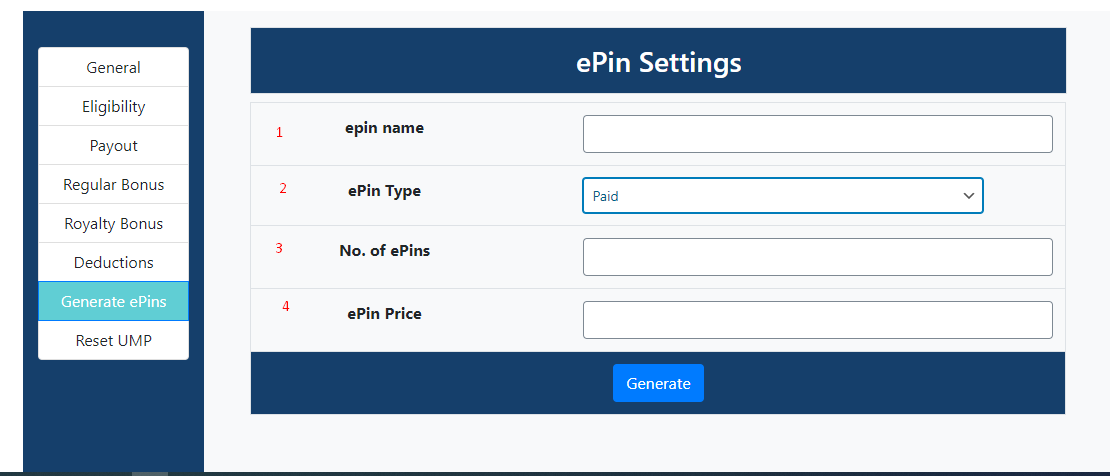
Generate e-pin
Generate e-pin steps :
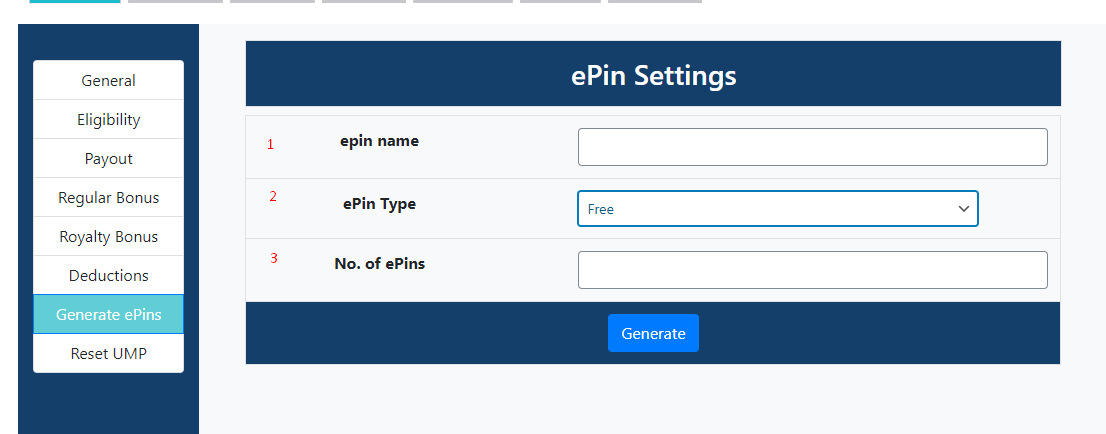
- E-pin name --> Enter the name of epin.
- E-pin type --> Select the e-pin type there are two type of e-pin free and paid, if you select paid then you will get another text box for e-pin price.
- No. of e-pin --> Enter No. of e-pin how much e-pin do you want to add.
- E-pin price --> Enter the amount of e-pin.
- Update settings.
Fill all given fields
That's Done!!
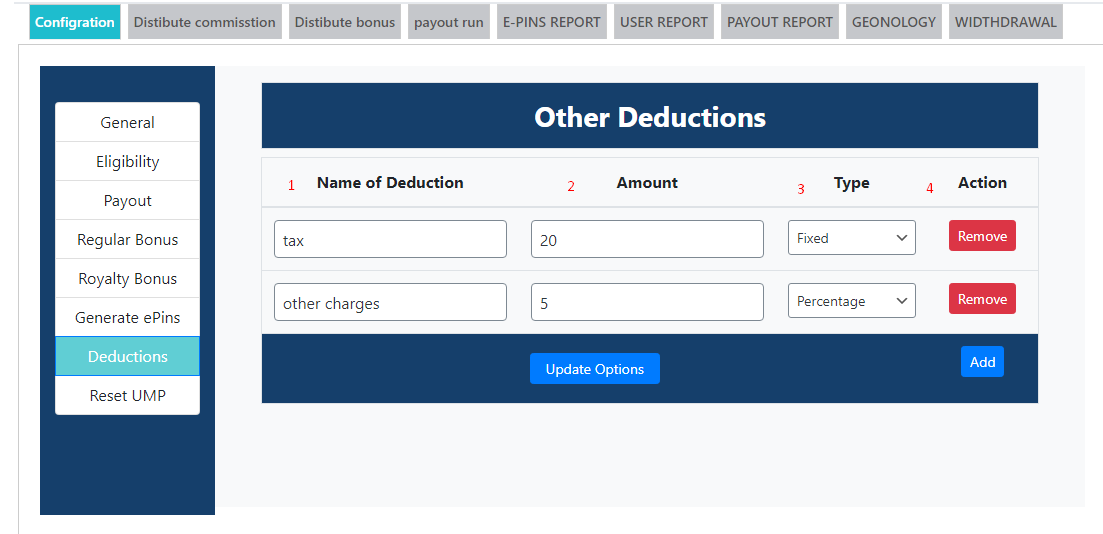
Deduction settings
Deduction settings steps :
- Name of dudection --> Enter the name of deduction you want to charge on user income.
- Amount --> Enter the amount that to be deductive in the % or fixed amount.
- Type --> Select type amount to be in % or fixed amount.
- Action --> You can add anothor type of charge using add button or delete with the using remove button.
- Update settings.
Fill all given fields
That's Done!!
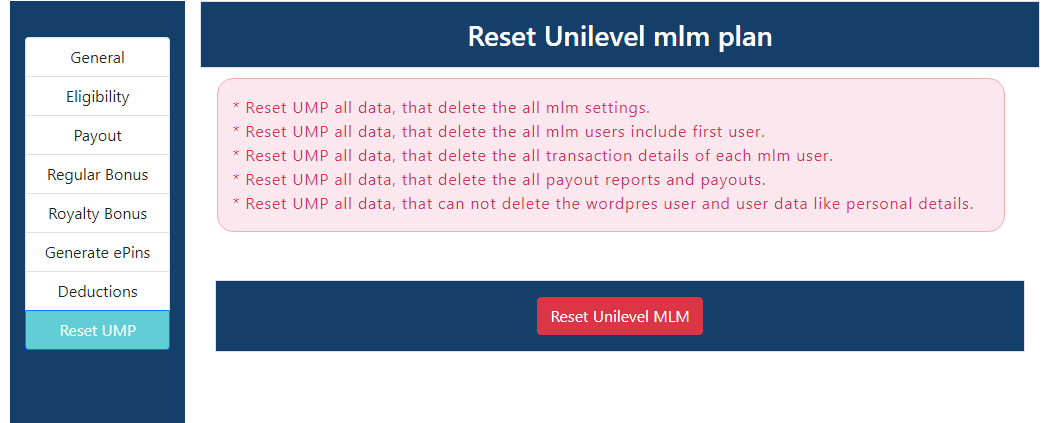
Reset unilevel mlm plan
Reset unilevel mlm plan steps :
- Reset Unilevel mlm --> With the cliking on this button you can reset all the settings of UMP you can delete all setting that you fill before .
That's Done!!
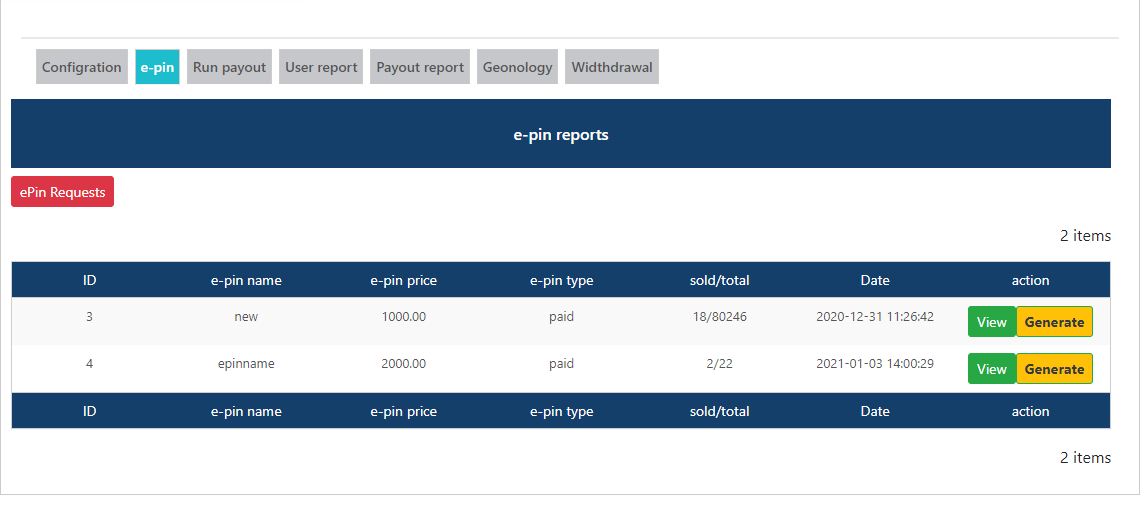
E-pin Management
E-pin management :
- Go to UMP plan > e-pin Here we get all type of epin reports
- Click on view to see the all epin report with this name epin.
- Click on generate button to crete more epin with this name and price, enter the quantity of epin how much epin do you want to generate and click on generate.
- Go to E-pin reports, Here you can cheack all epin,who use it who purchase it all detail are given there.
That's Done!!
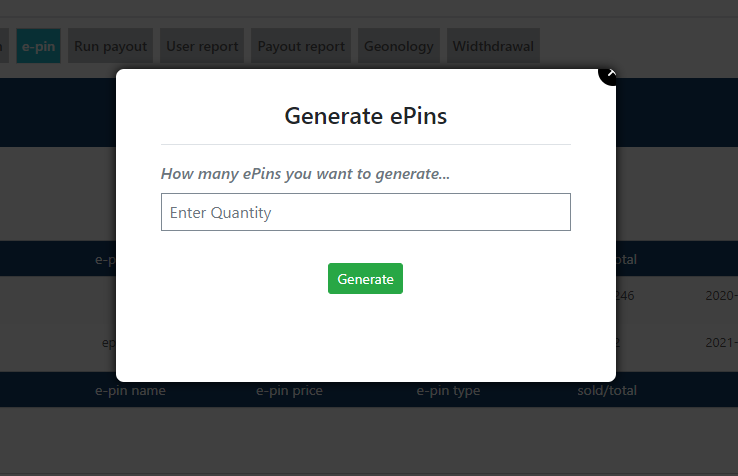
Generate epin
Click on generate to generate epin in epin section.
- Enter the quantity of epin how much epin do you want to generate this name and price epins.
That's Done!!
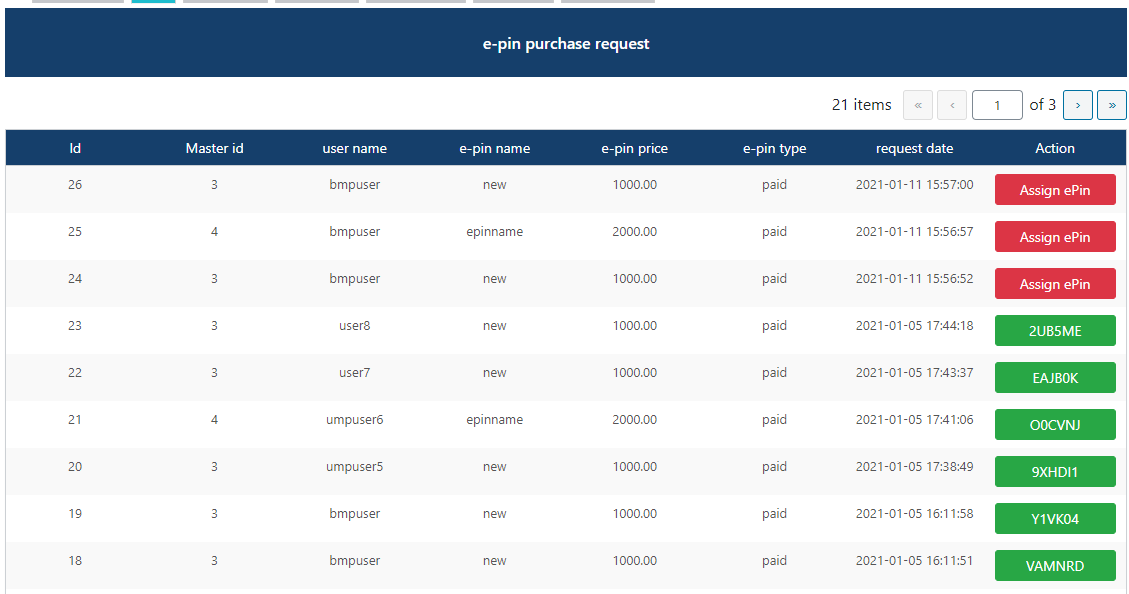
e-pin purchase request
Click on the epin request in epin section.
- Here we have all report of epin that user request to admin.
- Click on Assign epin button to assign epin to user.
That's Done!!
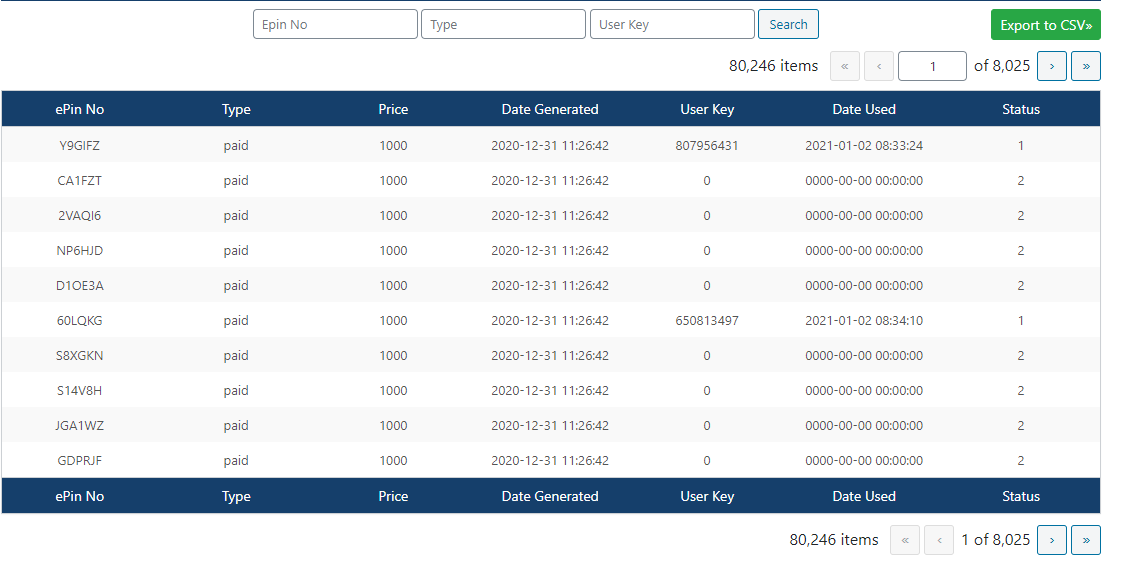
E-pin report
Click on the view button to see e-pin report. Here is the report of all e-pin that you generate and use to add users if e-pin is use you can not use it again.
- Export to csv--> With the cliking on this button you can get exacl sheet of this data .
That's Done!!
Run payout
Go to UMP > RUN payout . Here you will get three tabs.
- Distibute commission : Here you have the report of all users commission >here you check how much level,referrel,join commisson user get.
- Distibute bonus : Here you have the report of all users bonus >here you check how much royalty or ragular bonus user get.
- Payout run : All commission,bonus and deduction is show here after distibution.
That's Done!!
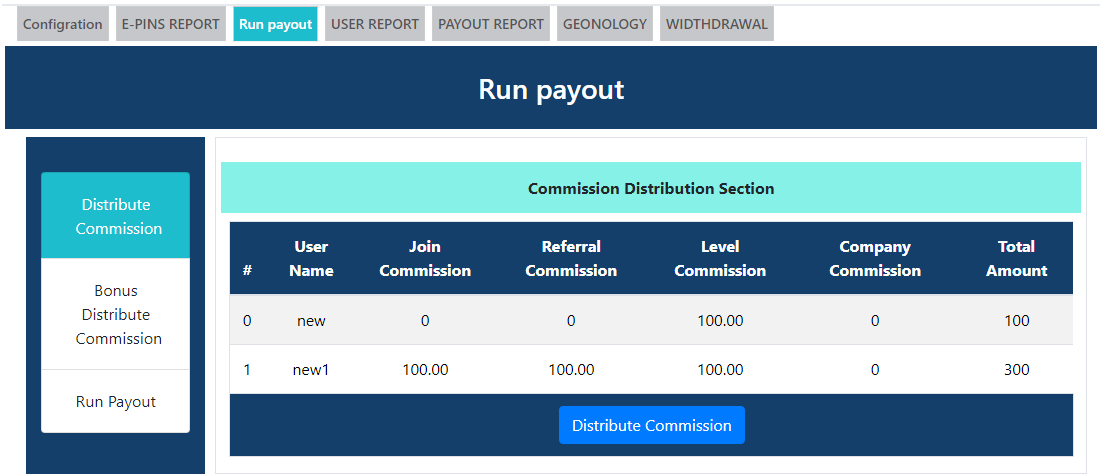
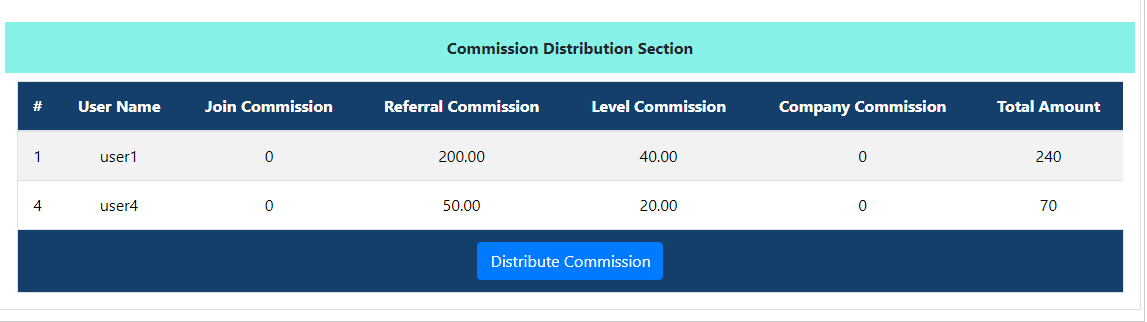
How to Distibute commission
Here you have the report of all users commission >here you check how much level,referrel,join commisson user get.
- There are four type of commission join,level,referrel commission is for user and the last commission company commission is for company.
- Distribute commission >>After the clicking of this button the all commission is show in run payout and user will eligibile for bonus.
That's Done!!
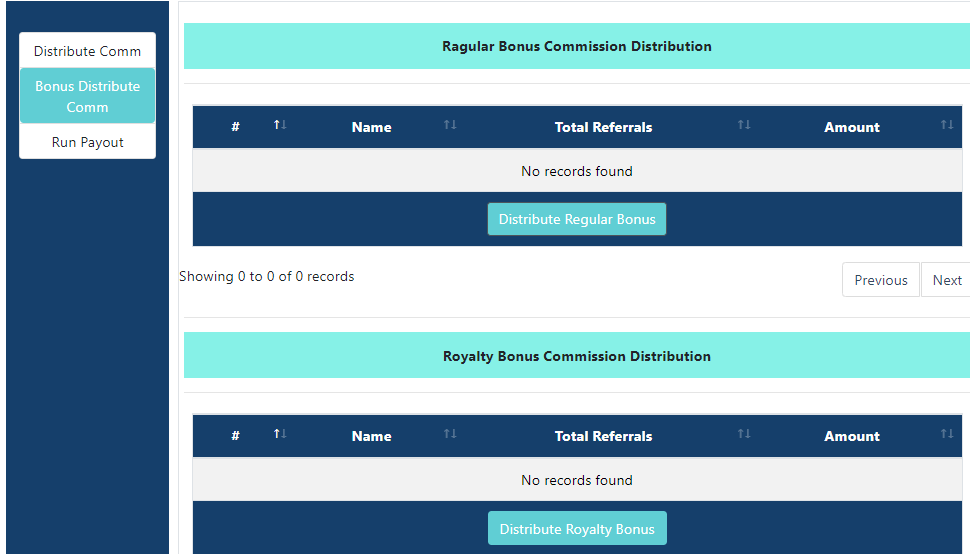
How to Distribute bonus
Go to UMP > Distribute Bonus. Here is two type of bonus commission that user will get.
- Distribute ragular bonus : Here you will find the Distribute ragular bonus button. click on this buuton to distribute ragular bonus.
- Distribute royalty bonus : Here you will find the Distribute royalty bonus button. click on this button to distribute royalty bonus.
That's Done!!
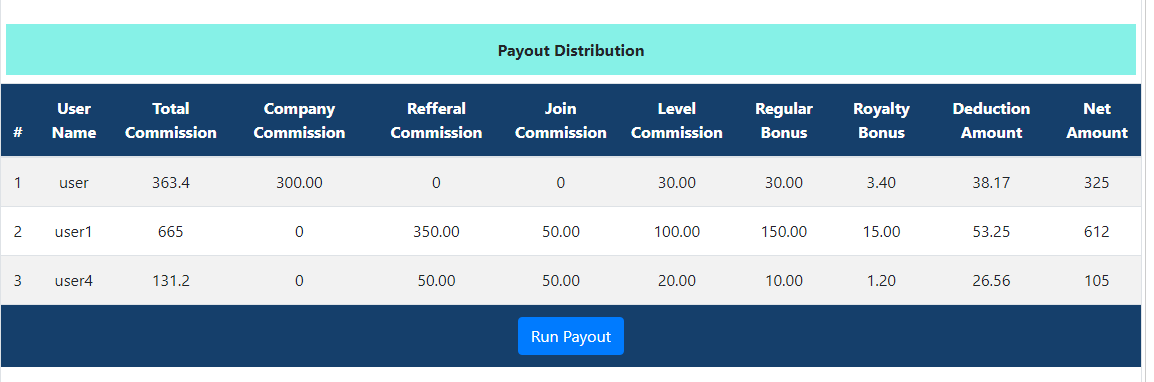
How to run payout?
Go to UMP > Run Payout. Here is all type of commission that user will get.
- Payout run : Here you will find the run payout button. Click on this buuton to run payout.
How can i check user reports?
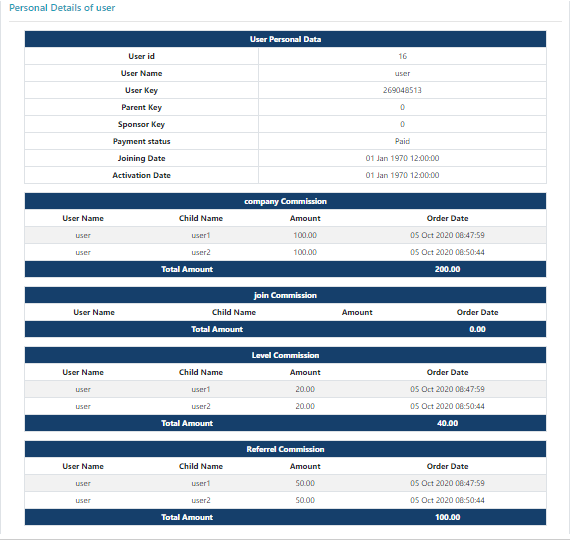
Go to UMP > User Report. Here you will see user reports listing with total comissions, bonuses and deductions.
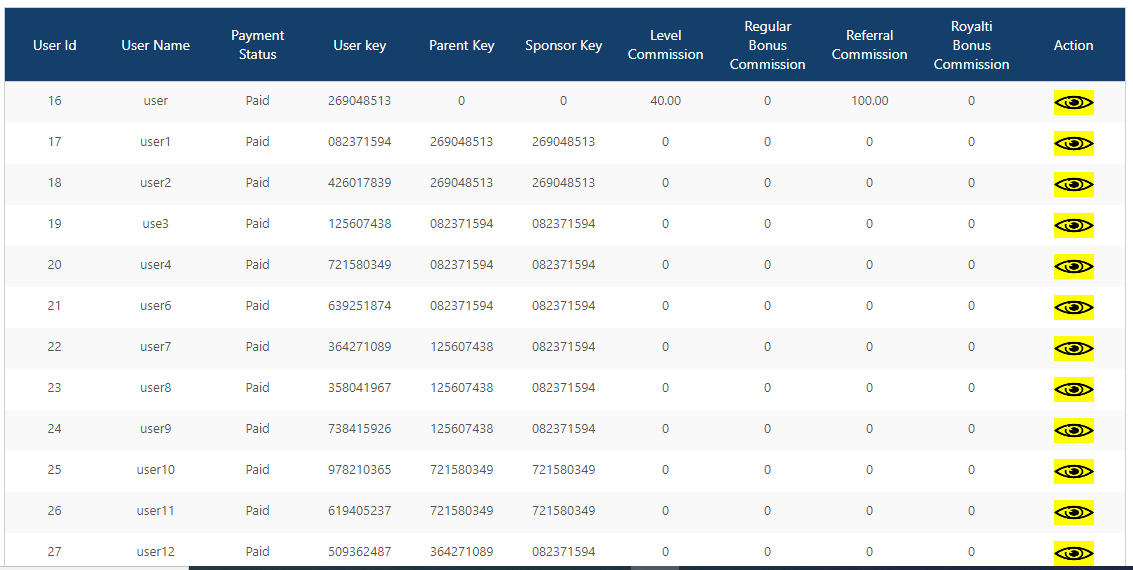
- Action : Here you will find the button. click on this buuton to cheack particular user report.
- Personal detail : Here you will find the all personol detail of user.
- Company commission : If this user is company then you can see companay commision .
- Level commission : Here you can see level commision of user.
- Join commission : Here you can see join commision of user.
- Referrel commission : Here you can see referrel commision of user.
How can i check payout reports?
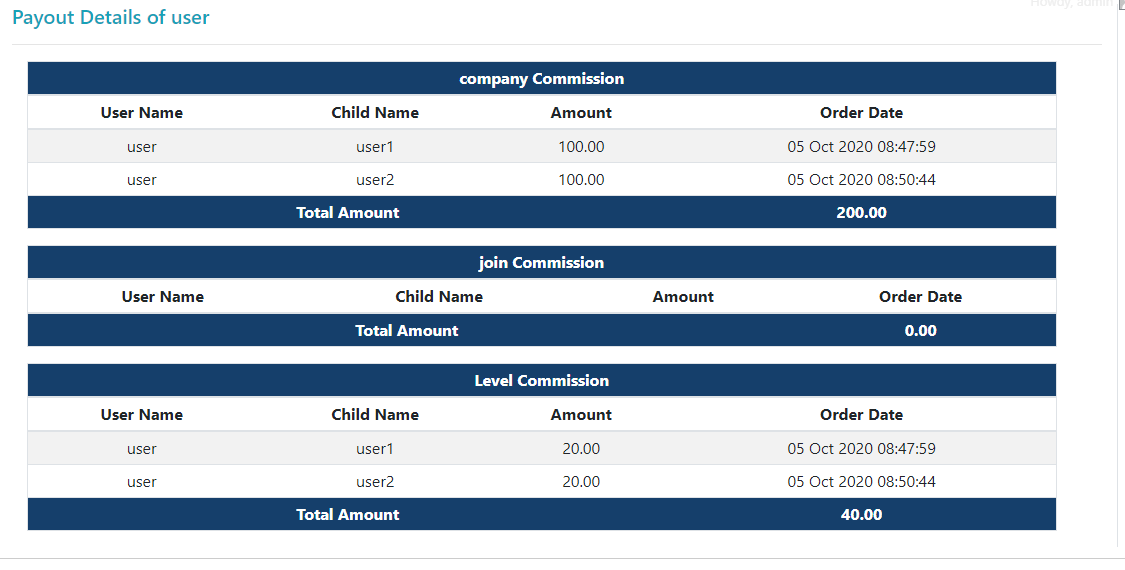
Go to UMP > Payout report. here you will see master payouts listing with total comissions, bonuses and deductions.

- To view details of payout click on action button, here you will see the user's payouts with their total commissions, bonuses and deductions.
- To view user's payout details click on action button, here you will see complete details of that users payout.
Genealogy
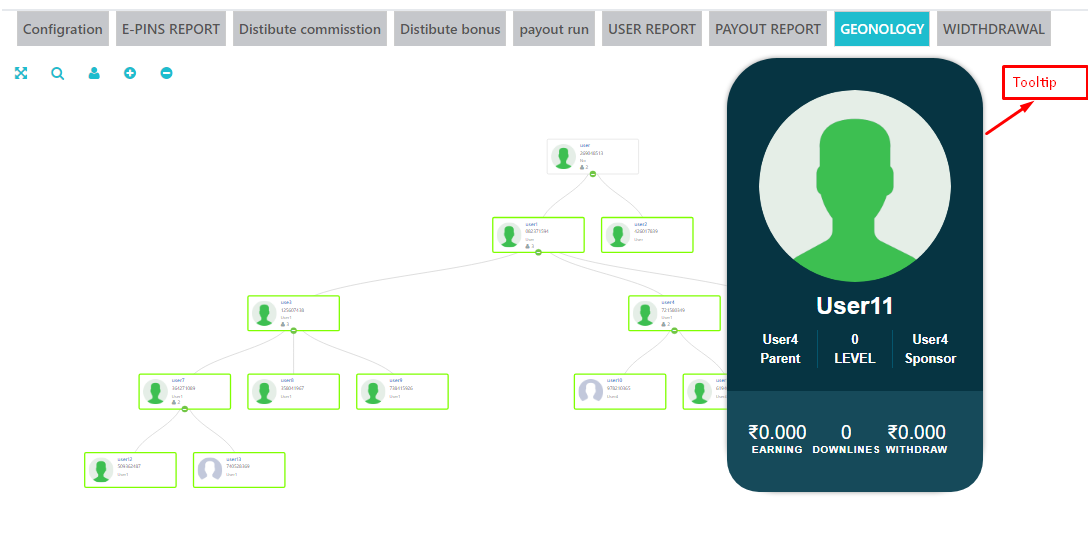
In our system we have developed genealogy with d3.v4 onganization chart .
How To Manage Withdrawals Requests?
Go to UMP > Withdrawals. Here you will see user withdrawal requests.
Click on action pay button to change status of withdrawal request. you can change withdrawal status only once.
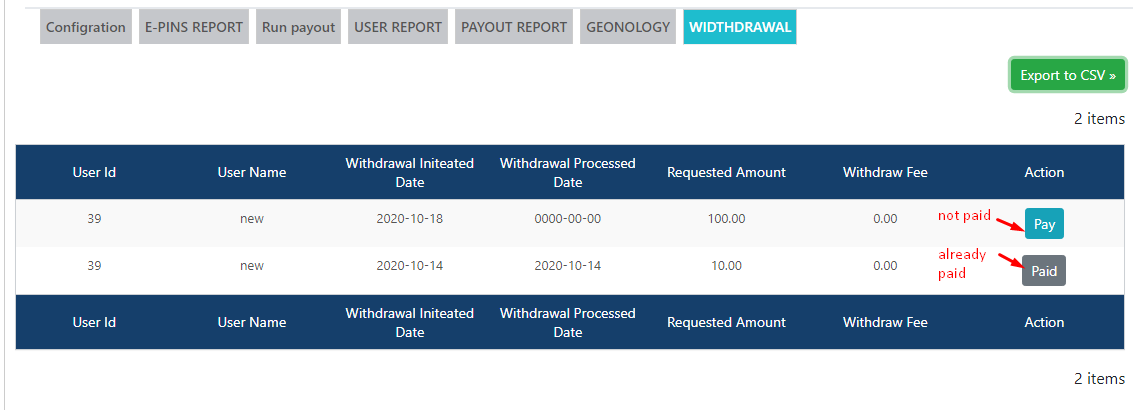
- To view details of witdrawal click on action pay button, here you will see the user's witdrawal requset and you can accept requst and you can see history of witdrawal .
- Here you will get the all detail of witdwaral request. and history of witdrawal request. here we have three sections.
- withdrawal requestHere you will get the all detail of withdrawal request.
- Bank detailhere we have account detail of user for the payment.
- payment formpayment form for change the status of payment .
- withdrawal historyhere we have history of withdrawal, paid request, process request,initiate request.
SMS Settings
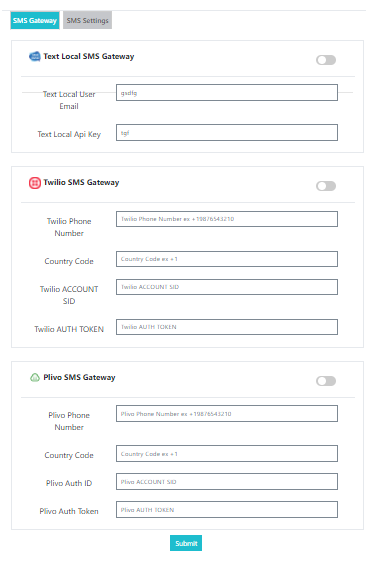
Click on Gateway button to see gateway settings,In our system we have developed three SMS gateway.
- To use TEXT LOCAL SMS gateway fill all the credential of TEXL LOCAL SMS gateway
- To use Twilio SMS gateway fill all the credential of Twilio SMS gateway
- To use Plivo SMS gateway fill all the credential of Plivo SMS gateway
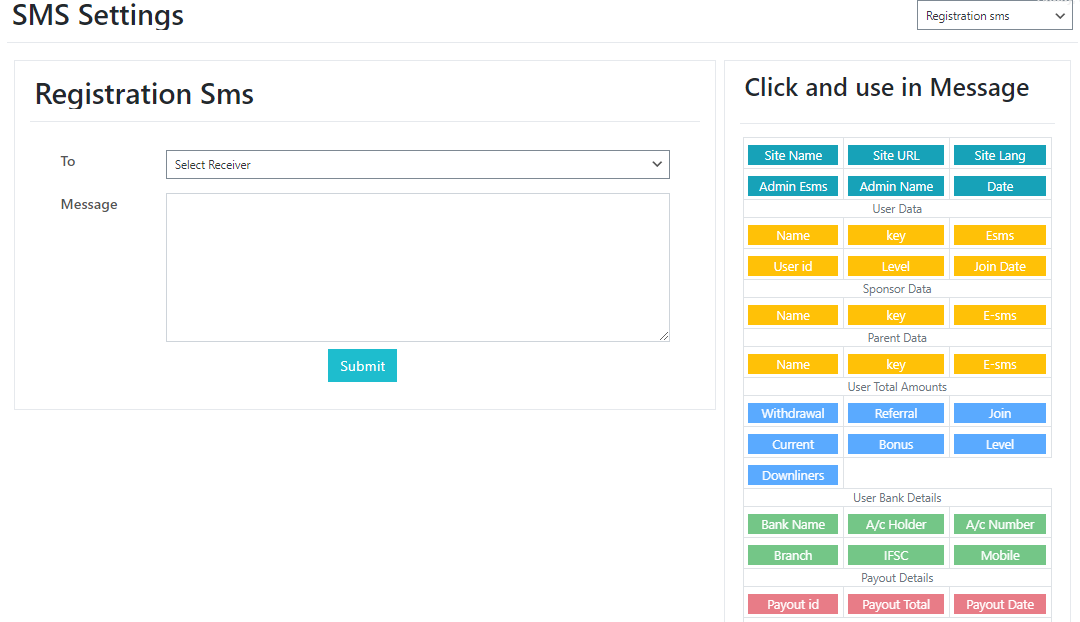
Click on SMS settings button to see SMS settings,.
- Write the message in message box that you want to send to user .
- Select the mail type for what you re typing mail.
- Click and use in message you can use these keywords in your message.
- Click on Submit button to save the message.
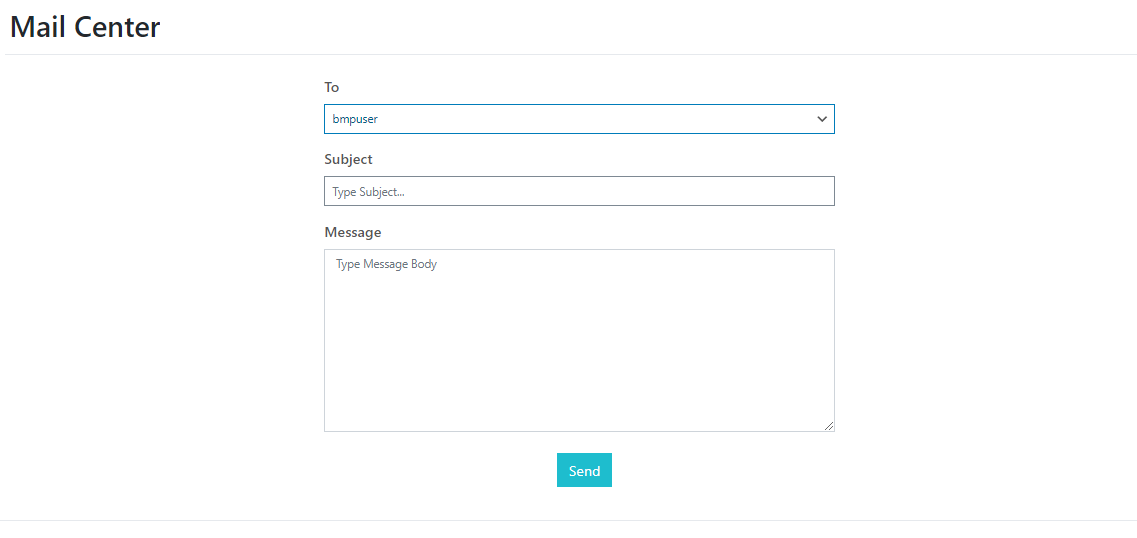
Mail Center
- Select the user him you want to send mail
- Enter the subject of mail
- Type the message that you want to send to user
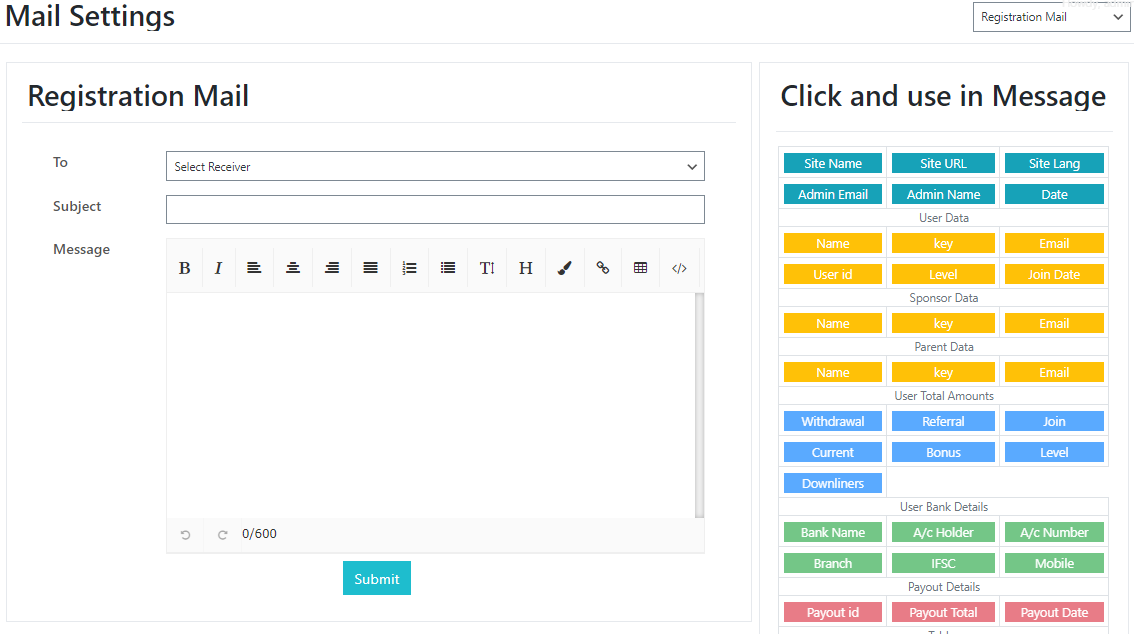
Mail Settings
- Write the mail in message box that you want send to user.
- Select the mail type for what you re typing mail.
- Click and use in message you can use these keywords in your mail.
- Click on Submit button to save the mail.